This help is meant to guide you through the capabilities of the look
& feel and help you use these features to tweak the appearance of
your Java (TM) application.
Download & Install
Dowload the jar file containing the latest binaries, and place it into
your CLASSPATH variable.
Use the following sequence to install the look & feell:
try{
    UIManager.setLookAndFeel("com.shfarr.ui.plaf.fh.FhLookAndFeel");
}
catch (Exception e) {
    e.printStackTrace();
}
Features
Fh Look & Feel may has a large set of tweakable features:
- The core of the appearance is a theme
(may be a jar file or a directory) which contains the description for
the main parts of the appearance,fonts, colors, borders, etc. The
laf comes with three builtin themes:one with a classic appearance, a
flat one and a flat one with shadows.
- Uppon the theme, there are a series of immediate adjutsments to
meke the theme suitable toeveryone:
- text antialiasing
- use a custom base color to change the cromatics of the
look and feel (independently form the theme)
- saturation of the base color
- confirm painting of textures
- auto manage icons on buttons
- make all fonts bold (as accessibility issue)
- increase or decrease procentually the size of a fonts in the
system (as accessibility issue)
- change the brightness or contrast of the theapplication (as
accessibility issue)
- A theme editor to make new themes or customize existing ones
using the theme editor
The concept
The main ideea of Fh look and feel is that the appearance of the
an application is given by the colors, fonts, borders,
and the textures of the displayed components. So in order to
change the appearance of the application one must change these
components.
The Colors
To keep the appearance of the look & feel consistent, the entier
laf is based on a color palette which has two main parts: The base
colors are 20 colors which are (lighter and darker) variations of a
given base color. These base colors are not editable, they are
generated automatically and may be changed by changing the base color.
The other part consits of a set of custom colors which are used
to spice up the appearance. These can be edited or deleted, and new
ones may be added. There are however two special custom colors which
cannot be removed, the negative and positive color which
represent the color to display the negative or positive tones specified
in the laf: (for example cancel and ok).
The Fonts
To keep the fonts versatile but consistent, the laf defines a small
set of fonts, each of them changable, such as: button fonts (for
buttons, toggle buttons), menu fonts (for menus, menu items, ...) etc.
The Borders
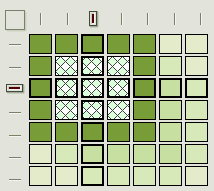
In Fh Look & Feel each border is defined by a matrix or a set of
matrices of colors defining different states of the componet, like in
the following picture:
where each cell is a mapping to a color in the color palette. The
borders should be defined using mainly the base colors in order to keep
the consistency and use custom color to define special situations only
such as the focus.
The border has a weight point which marks the neutral place in the
matrix. The sides of the border are calculated according to this point:
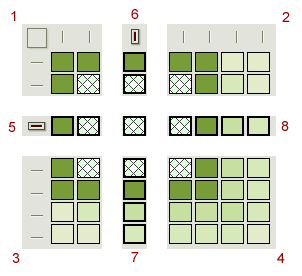
where 1, 2, 3, 4 represents the four corners of the border, and 5, 6,
8, 7 represents the colors to be used to paint the sides of the
borders.
The Textures
There are 3 kinds of texture available at the moment in the llok and
feel: Gradient Texture, Matrix Texture, and Compound Texture.
Using these and a set of mapped name, there can be defined the set
of textured used bu the components of the Look & Feel.
Adjusting the theme
To adjust the laf start the Theme Manager application by
running:
java -jar fhlaf.jar
or by clicking the fh icon on the right of the running Java (TM)
application:
The following theme manager will appear:

- specifies the directory where the extra themes (other then the
built in themes) are stored .
- select the theme to be used
- description of the theme
- create a new theme starting from one of the built in ones
- start a new theme starting from the currently selected theme (use
this if you wish to change some features in the current theme, such as
fonts)

- select this if you wish to use a base color different from the
one specified by the theme
- choos the desired custom color ( the color must to be arround the
middle of the color scale [0..255] )
- choose the chromatic saturation of the look and feel.
- manage the button icons (automatically generate disabled,
rolover, etc icons starting from the main icon)
- enable/disable text antialiasing.
- enable/disable the painting of textures on the large components
(JPanel) if exists.
- enable/disable the painting of texture on normal components

- make all fonts bold.
- adjust procetualy the size of all fonts in the system.
- adjust the brightness of the look & feel.
- adjust the contrast of the look & feel.
Creating and customizing
the theme
In case you whish to modify the base components of the theme such as
fonts, borders, color palette or textures you must first create a new
theme based on the current one and then use the Theme editor to modify
it.

This panel allows you to edit the component mappings aswell as the
theme information and other custom elements such as affirmative,
negatives which mark the texts that will be painted on buttons using
specific color s other than the foreground.
- select the item to edit
- edit the item
- save the palette (meta information)
- revert the palette (in case it haven't been saved right before :)

- select the color to edit here (the variations of base color
are not selctable, change them by changing the base color)
- displays the selected color
- the name of the selected color
- choose another color for the key in (3)
- adjust the alpha component
- save the entier color palette
- revert the palette
- add /set the new value for the key
- revert the value of the selected key to the one in the palette
- remove the key (please make sure nothing referes the key)

- select the font to be edited
- choose another font (using fonts on your computer)
- sample text
- save the font palette
- revert the font palette

- choose the matrix cathegory to be edited (Borders)
- choose the matrix cathegory to be edited (Textures)
- choose a color from the color palette
- displays the color's key (name)
- choose the matrix to be edited
- modify the matrix's height
- modify the matrix's width
- sample border (it shows the border as it is edited)
- move the weightpoint horizontally
- move the weightpoint vertically
- save / revert palette, add / delete item

- choose the matrix cathegory to be edited (Borders)
- choose the matrix cathegory to be edited (Textures)
- choose a color from the color palette
- displays the color's key (name)
- choose the matrix to be edited
- modify the matrix's height
- modify the matrix's width
- texture sample (it shows the border as it is edited)
- -
- -
- save / revert palette, add / delete item

- choose the texture to be edited
- choose the type of the texture
- sample texture (on transparent background, and opaque background)
- adjust the texture's rotation and add new elements to the texture
table
- -
- -
- -
- -
- -
- list of elemets in the texture
- save / revert palette, add / delete item
Support, Contact
Thank you for
using FH Look & Feel
If you whish to suport this look
and feek by sponsoring it, or you whish to submitt bugs or suggestions
please contact me at shfarr@yahoo.com
Best Regards,
Stefan Harsan Farr